Agent Chat
Agent Chat lets you talk to Home Assistant from a chat window inside Home Assistant itself, without needing to install any external client. ATM runs the agent itself, on the token you choose, so everything you already configured, the permission tree, capabilities, approvals, and MESA, applies exactly the same.
Agent Chat vs. External client
Connecting an external client (Claude Code, ChatGPT, and so on) points a tool you already use at ATM's MCP endpoint. Agent Chat is the opposite: there's nothing to install and it runs within Home Assistant, but it uses your own LLM account's API key and runs one conversation at a time in the browser. Both drive the same scoped tools and the same safety gates. Use whichever fits your needs.
What it is
When you open Agent Chat, a small chat window floats on top of the panel. You type a request, the agent reasons and calls ATM's tools on the token you selected, and its replies, the tools it calls, and their results stream in live. Because ATM runs the loop itself:
- The agent can only ever use the tools that token would expose, and only reach the entities in its permission scope.
- Capability gates still apply. An action set to
confirmstill needs your approval; one set todenyis not offered. - MESA per-entity rules still apply. A read-only or confirm-by-nature entity behaves the same as it would for any client.
- Every tool call is written to the audit log, attributed to that token.
Agent Chat adds no new authority. It is a convenient front end for the exact same scoped surface an external agent would get.
Before you start: add a provider account
Agent Chat does not include an AI model. You bring your own API account with one of nine providers, and you can add more than one account of any kind (for example two Claude keys, or a cloud provider plus a local Ollama):
Claude
Anthropic's Claude models. You provide an API key. Defaults to the most capable model; you can pick another.
DeepSeek
DeepSeek's hosted models. You provide an API key. A thinking control (Off, High, or Max) is available in the gear menu.
ChatGPT
OpenAI's GPT and o-series models via an API key. The reasoning models (o-series and GPT-5) expose a thinking level in the gear menu; standard GPT models expose temperature instead.
Gemini
Google's Gemini models via an API key (using Google's OpenAI-compatible endpoint). Gemini 2.5 and 3 models expose a thinking level (minimal to high).
Grok
xAI's Grok models via an API key (xAI is OpenAI-compatible). The reasoning models expose a thinking level (Off, Low, or High) in the gear menu; with thinking off, temperature applies.
MiniMax
MiniMax's models via an API key, using MiniMax's Anthropic-compatible API. Thinking is an on/off toggle in the gear menu (some MiniMax models always reason); temperature is left at the default.
Ollama (cloud)
Ollama's hosted service. You provide an Ollama API key and pick from the cloud models (for example gpt-oss:120b); nothing runs on your own hardware. Same on/off thinking control as local Ollama.
Ollama (local)
A local Ollama server on your own network. No key; you provide its address (for example http://your-host:11434) and pick from the models you have installed.
OpenRouter
A single API key that routes to hundreds of models across providers. OpenRouter is OpenAI-compatible; the model list is filtered to tool-capable models, since Agent Chat needs tool-calling. Thinking level is not exposed (it varies by model); temperature applies.
Local Ollama: the address is relative to Home Assistant, not your browser
ATM contacts your Ollama server from the Home Assistant host itself, not from the browser tab you are looking at. http://localhost:11434 means "on the Home Assistant host," which is rarely what you want if Ollama runs elsewhere. Enter an address Home Assistant can reach, check that any firewall between them allows the connection, and if Ollama runs on a different machine, make sure it is configured to listen on more than its own loopback interface.
Open the chat
Open the window from the Agent Chat button in the ATM panel header. It opens on your first token, and a token switcher inside lets you change which token it acts as. The Create Token dialog offers a Set up Agent Chat option that takes you to Settings so you can add a provider account first if you have not already. The guided setup goes further: choosing Agent chat using HA at its "Choose how to connect" step walks you through adding a provider account without leaving the wizard, then opens this window for you with a test prompt already typed in. See the quick start.
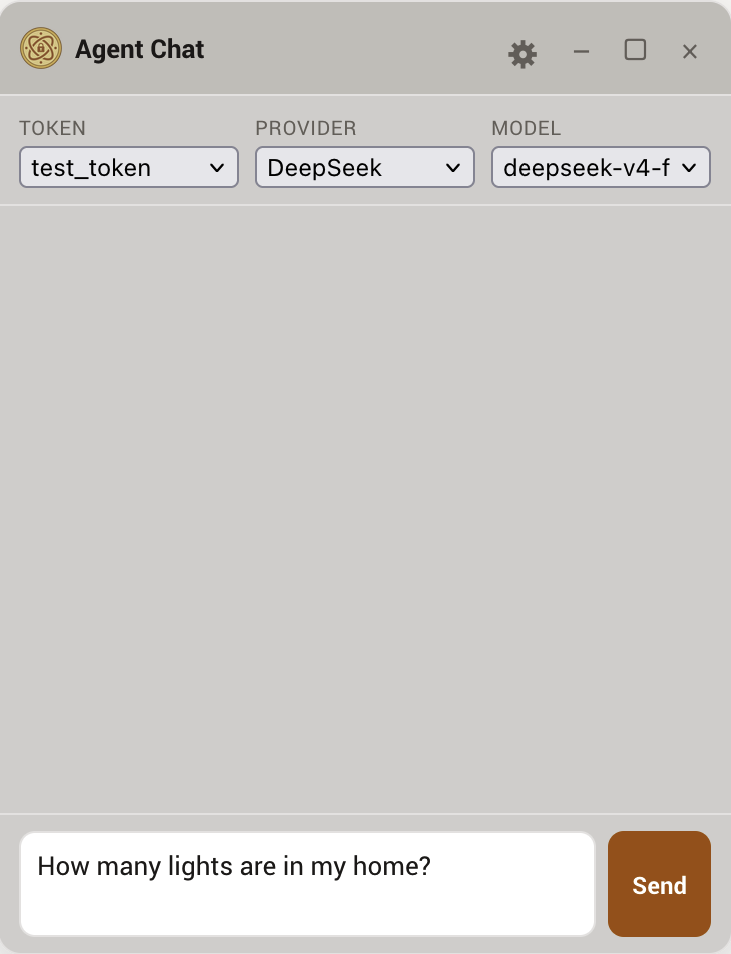
The window floats on top of Home Assistant and stays put as you move between tabs. Drag it by its title bar, resize it from any edge or corner (dragging and resizing both snap neatly to the screen edges so nothing runs off-page), minimize it to a small bar you can drag anywhere, or close it.
Panel only, or over all of Home Assistant
By default the chat window is available everywhere: it hovers above the whole Home Assistant interface, on any tab or dashboard, and stays put as you navigate, so you can keep talking to Home Assistant while you look at a dashboard or a config page. If you would rather confine it to the ATM panel, turn off Show throughout Home Assistant in the Agent Chat settings card.
A few deliberate limits keep this predictable and safe:
- The window still opens only from the Agent Chat button in the ATM panel. There is no button anywhere else in Home Assistant, so if you close the chat window you must return to the ATM panel to reopen it.
- Available everywhere requires Home Assistant 2025.5.0 or newer. On an older version, Agent Chat quietly falls back to the panel-only window; nothing breaks.
- While the kill switch is on, the window is hidden and cannot be opened until you turn the kill switch back off.
Using the chat
Type a prompt and press Enter (Shift+Enter for a new line) or click Send. A small spinner shows while the agent is working, which is useful when a local model has to load first and can take a while before the first words appear. While a prompt is running the Send button becomes Cancel: click it to stop, for example if a model is taking too long or you want to reword your prompt. Cancelling discards that response (any late reply is ignored) and puts your prompt back in the box so you can edit and resend it.
By default the window stays quiet and shows only the reply, streaming in word by word; the agent's tool calls, tool results, and reasoning are hidden. Turn on Show verbose output in the gear menu to watch every step (each tool it calls and what came back, plus a collapsible Reasoning block where the model exposes one).
The header has three selectors, each labelled: the Token the agent acts as, the Account (which configured provider account runs it), and the Model. Switching the token or account starts a fresh conversation, because the available tools and message format change. The model can be switched at any time.
Approvals in the chat
When the agent tries to do something that a capability has set to confirm, the action does not just run. A card appears in the chat with Review…, Approve, and Reject buttons. Because you are the administrator viewing the panel, you can decide right there:
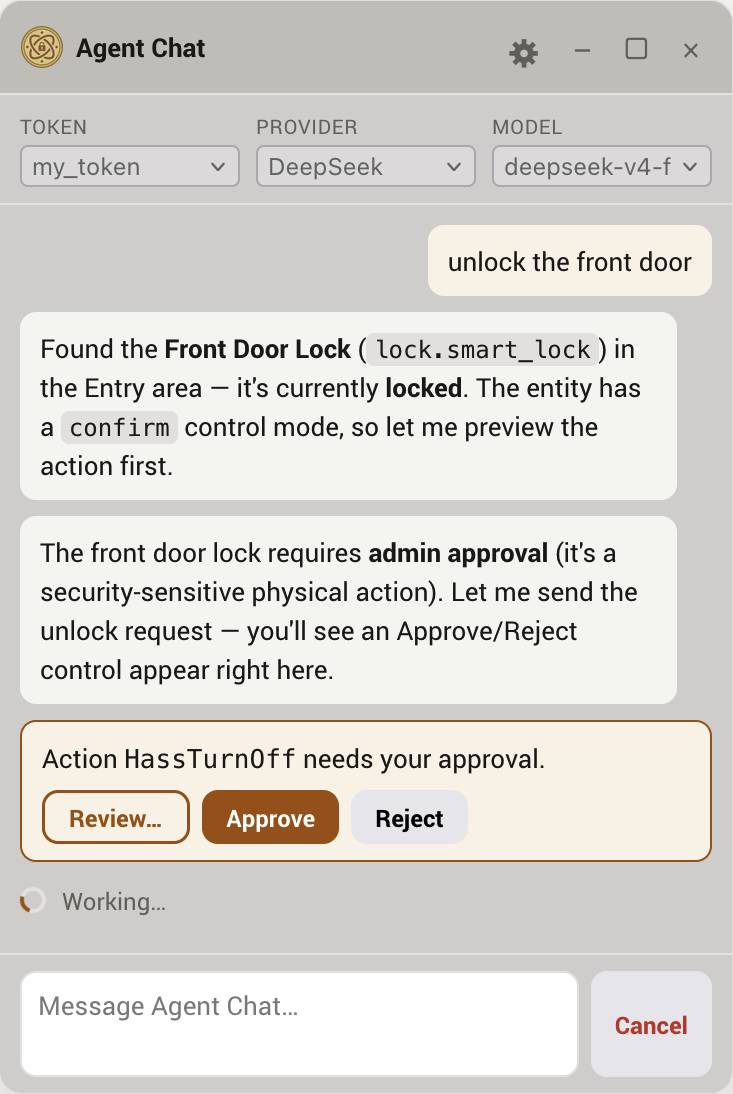
- Review… opens the Approvals tab for this request, where you can see the full details of what the action would change before deciding. The chat card stays put, so once you have looked you can come back and Approve or Reject inline.
- Approve and the queued action runs and the same turn continues, with the result fed back to the agent.
- Reject and the agent is told the action was not applied and to not retry it. If you type a reason when rejecting from the Approvals tab, that reason is passed back to the agent as well.
This is the same approval that would otherwise appear in the Approvals tab; Agent Chat just brings the decision inline so you do not have to leave the conversation, with Review… as the one-click way to jump to the full record when you want it.
Agent Chat cannot skip the gates
Approving in the chat is the same admin approval as anywhere else. The agent cannot grant itself an approval, reach an out-of-scope entity, or use a capability set to deny. The chat is a convenience layer on top of the same enforcement.
Options and clearing history
The gear button in the title bar opens the options popover. It only ever shows the controls the selected provider and model actually support:
- Show verbose output (off by default): when off, the window shows only the final reply; when on, it also shows each tool call, its result, and the model's reasoning.
- Thinking: a single dropdown offering that model's real reasoning levels. Claude ranges from Off through the effort levels up to Max; DeepSeek offers Off, High, or Max; OpenAI reasoning models (o-series, GPT-5) and Gemini 2.5/3 offer their reasoning levels (minimal to high); Grok offers Off, Low, or High; MiniMax is a simple on/off toggle; models with no thinking control simply omit this.
- Temperature: shown only where it applies, DeepSeek (when thinking is off), standard GPT models, Grok (when thinking is off), OpenRouter, and Ollama (local and cloud). It is not shown for Claude, Gemini, or MiniMax, whose providers recommend leaving it at the default for their reasoning models.
The same menu has a Clear chat history action, which empties the conversation and starts fresh without closing the window or changing your token, provider, or model, and a Close button to close the popover.
You can do the same thing from the message box: type /clear and press Enter to start a new conversation. The command is handled locally, it is never sent to the model and does not appear in the transcript, and it does exactly what Clear chat history does.
Chat memory
Conversations live only in your browser tab. They are not saved on the server and they clear when you reload the page.
The Chat memory (lines) setting (in the Agent Chat Settings card) bounds how many lines the window keeps, which is also the conversation's memory. Setting it to 0 means the agent will have no memory of previous prompts; 100 to 500 lines is a good range, and the maximum is 5000.
ATM resends the retained transcript with each turn, because the model has no memory of its own between turns; that transcript is how it knows what was said earlier in the conversation. (On Claude, the repeated portion is served from the provider's prompt cache at a reduced rate, so the added cost is smaller than the raw token count suggests.)
- Default is 100 lines; the maximum is 5000.
- Set it to 0 to keep nothing, but beware: each prompt starts with no memory of earlier prompts.
Raising the limit lets the agent remember more of a long session, at the cost of sending more text (and so more tokens) to your provider each turn.
Privacy and security
- Your API key never leaves the server. It is stored on the Home Assistant host in
.storage/atm_agentcli_secrets(in your Home Assistant config directory), a file separate from your tokens (.storage/atm) and the rest of ATM's settings, and is never sent to the browser, logged, or written into a transcript. It is included in Home Assistant full backups and in partial backups of.storage. You can delete it at any time by removing the account in Settings, or by ticking "Delete Agent Chat provider keys" in the Settings › Data Management wipe. - Agent Chat honors the kill switch. The chat runs the same scoped tools an external agent would; if you engage the kill switch, Agent Chat stops along with the rest of ATM's agent surface. The provider settings remain reachable so you can manage them.
- Admin only. Opening the chat and configuring providers both require a Home Assistant admin session, the same as the rest of the panel.
- Your conversation goes to your provider. Requests and the tool results the agent sees are sent to the LLM provider you chose (Anthropic, DeepSeek, OpenAI, Google, xAI, MiniMax, OpenRouter, Ollama Cloud, or your local Ollama). For a fully local setup, use a local Ollama server.
- Model output is treated as untrusted. The assistant's replies are rendered as Markdown with all HTML and scripts escaped to plain text and non-text control characters stripped, so nothing a model emits can execute in your browser. If a reply did contain such content, the window shows a short notice so you know it was neutralized.